October 13, 2026
Access Crop Hub without an internet or cellular data connection
You can now use the Ontario Crop Protection Hub (Crop Hub) without an internet or cellular data connection.
Learn how to set up and update offline access to Crop Hub and install it as an app on your desktop or mobile device.
Set up offline access
You can set up offline access through your desktop or mobile browser following the steps below.
- Go to the Offline access page.
You can also navigate to this page using the "Offline access" link in the top right corner of the website, to the left of the language selector.
- Choose what language(s) to download content in.
The default language for the download will be in English if you are accessing it from the English site. If you would also like to download the content in French, click the "Also download French for offline use" box above the "Set up offline access button."
- Select "Set up offline access."
Click the "Set up offline access" button to begin the download for offline use.
- Keep the page open and maintain a reliable connection during the initial setup.
You will need to keep the page open and maintain a reliable internet or cellular data connection during this step. It could take several minutes to download all of the content.
When the download is complete, a green confirmation message will appear. The message will show the date and time that offline data was last saved.
Use Crop Hub offline
Once offline access is setup, Crop Hub will automatically switch to offline mode when you do not have an internet or cellular data connection. When your connection is restored, the site will switch back to the online version. If your connection is poor or patchy, you can choose to switch to offline access by selecting the "Use offline data" button on the "Offline access" page.
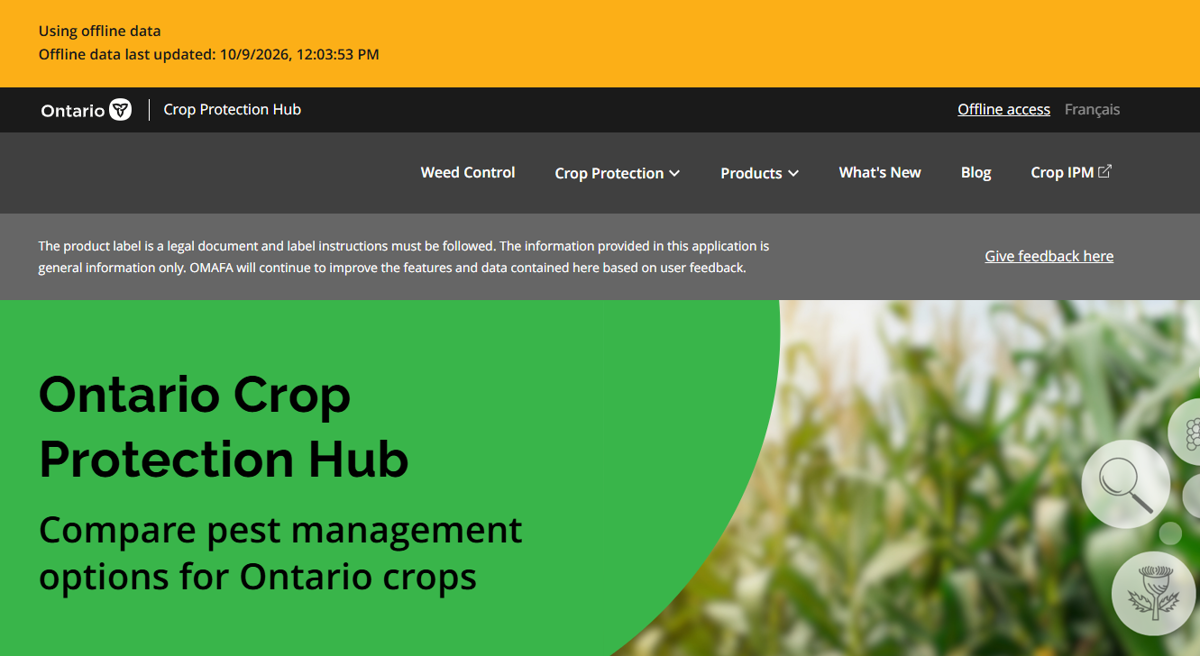
When using Crop Hub offline, an orange status bar will appear at the top of the website indicating that you are using the site in offline mode. If you have a reliable connection and want to switch back to online mode go to the "offline access" page and select "Stop using offline data."
Update your offline content
To make sure you have the latest information available offline, connect to the internet or cellular data and update your saved content.
- Go to the “Offline access” page.
- Select “Update offline content.”
- Keep the page open and maintain a reliable connection while the content is downloading.
When the update is complete, a green confirmation message will appear. The message will show the date and time when the offline data was last saved.
You can check this date at any time on the “Offline access” page to see when your offline content was last updated.
Install Crop Hub as a desktop or mobile app
Installing Crop Hub as an app makes it easier to open from a desktop or mobile device. Installing the app does not automatically set up offline access. To use the app without an internet or cellular data connection, complete the offline access setup described above.
Install Crop Hub on desktop
You can install Crop Hub as a desktop app directly through your browser's toolbar. The look and placement of the button to download Crop Hub varies by browser, but can typically be found on the right side of the toolbar near where the "bookmark" button is.
- Open Crop Hub in your browser.
- Select the browser's app installation option (Figure 1).
- Follow the browser prompts to install Crop Hub.
Once installed, Crop Hub can be opened from an icon on your desktop, taskbar or application menu, depending on your device and browser.

Install Crop Hub on mobile
To install Crop Hub as an app on a mobile device, visit Crop Hub from any browser. The steps for adding Crop Hub to a mobile device vary by browser and operating system.
- Open Crop Hub in your browser.
- Open the browser's Share or menu options.
- Select "Add to home screen."
- Follow the prompts to add Crop Hub to the device.